• 0 Shopping Cart
  • Account
    • Login
    • Register
    • Forgot Password?
  • Home
  • Store
    • Browse All
    • Shared Hosting
    • Reseller Hosting
    • WordPress Hosting
    • Cloud Hosting
    • VPS Server
    • SSL Certificates
    • VPN
    • Website Backup
    • Website Security
    • E-mail Services
    • Professional Email
    • SEO Tools
    • Register a New Domain
    • Transfer Domains to Us
  • Announcements
  • Knowledgebase
  • Network Status
  • Affiliates
  • Contact Us
  • More

Knowledgebase

Start your website today with reliable, affordable shared hosting
— designed for speed, simplicity, and 24/7 support.

  1. Portal Home
  2. Knowledgebase
  3. FTP
  4. How to Change the FTP User Quota in cPanel

  Categories

Backup/Restore
4
DNS - Nameservers
5
Installing a Control Panel
6
Others
3
PayPal
7
Security
10
WordPress
16
Databases
12
Domain Management
9
Email
5
FTP
9
Mail Filters & SPAM
8
Mobile
12
Softaculous
3
SSL
5

  Categories

  Tag Cloud

123-reg access account accounts alias android any apache backups based box cpanel create database delete dns domain edit email emails enable export external fight filter forwarders ftp generate global godaddy how level logicboxes msql name namecheap netearthone optimize page partial phpmyadmin redirect registrars remove rename repair restore send servers setup spam spamassasin spambox subdomain subdomains table traooer update url user webmail website

  Support

My Support Tickets
Announcements
Knowledgebase
Downloads
Network Status
Open Ticket

How to Change the FTP User Quota in cPanel Print

  • 0

Follow these steps to change the FTP quota or set it to Unlimited.


1. Log in to your cPanel account.


2. In the Files section, click on FTP Accounts.

 

3.
 Under the FTP Accounts list, click on Change Quota.
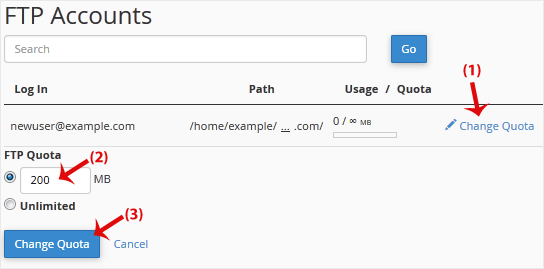
FTP Quota: Specify the quota in numerical words or select Unlimited.


4. Click on Change Quota.


Was this answer helpful?

Related Articles

How to Install Filezilla Client on Windows Installing the FileZilla FTP Client on Windows OS is easy. Just follow this tutorial. 1.... How to Access or Connect to the FTP via FileZilla You can access your FTP Account using the FileZilla FTP Client or any FTP Client.1. Open the... How to Create or Delete a Directory Using FileZilla You can create or remove a directory on your website using the FileZilla FTP Client.1. Open the... How to Upload the Index File to Your Website via FileZilla You can follow this tutorial to upload the files to your hosting account. 1. Open FileZilla FTP... How to Download Files and Directories to Your Computer via FileZilla You can download files from your website to your computer using the FileZilla Client.1. Open...
« Back

  Tag Cloud

123-reg access account accounts alias android any apache backups based box cpanel create database delete dns domain edit email emails enable export external fight filter forwarders ftp generate global godaddy how level logicboxes msql name namecheap netearthone optimize page partial phpmyadmin redirect registrars remove rename repair restore send servers setup spam spamassasin spambox subdomain subdomains table traooer update url user webmail website

  Support

My Support Tickets
Announcements
Knowledgebase
Downloads
Network Status
Open Ticket

We offer a wide range of reliable hosting solutions tailored to meet your specific needs, ensuring a seamless online experience for your website visitors.

Our Services

  • Shared Hosting
  • WordPress Hosting
  • Cloud Hosting
  • Reseller Hosting
  • Virtual Private Servers
  • Dedicated Server
  • Domain Registration

Email & Security

  • Email Security
  • Sitelock Malware
  • OS App Suite
  • CodeGuard Backup
  • NordVPN
  • SSL Certificates

Community

  • About FastLane Servers
  • Announcements
  • Our Blog
  • Knowledge Base
  • Affiliates
  • Network Status

Contact Us

  • PO BOX 331 Baytown, TX 77521 United States

  • (309) FAST-ONE
  • info@fastlaneservers.com

Copyright © 2026 FastLane Servers. All Rights Reserved.


Loading...
Loading...
Choose language
العربية
Azerbaijani
Català
中文
Hrvatski
Čeština
Dansk
Nederlands
English
Estonian
Persian
Français
Deutsch
עברית
Magyar
Italiano
Macedonian
Norwegian
Português
Português
Română
Русский
Español
Svenska
Türkçe
Українська

Generate Password

Please enter a number between 8 and 64 for the password length