Email Setup Instructions for iPhone iOS 26
1. Goto Settings Icon >> Goto Apps (at bottom) >>Goto Mail >> Goto Mail Accounts >> Add Account >> Enter Email Address >> Tap Add Other Account >> Tap Mail Account
2. Enter your email account information: Name, Email, and Password >> Click Next
Example:
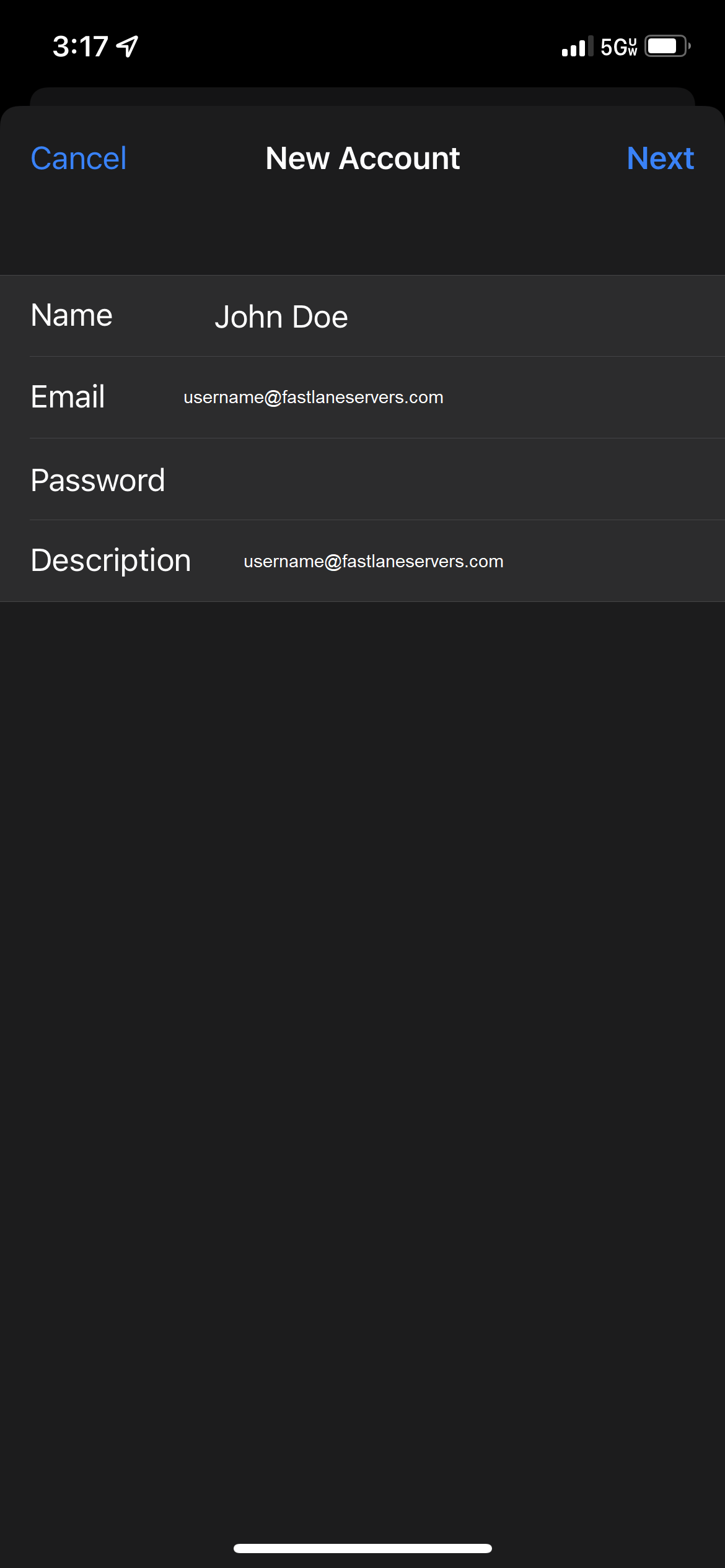
1. Goto Settings Icon >> Goto Apps (at bottom) >>Goto Mail >> Goto Mail Accounts >> Add Account >> Enter Email Address >> Tap Add Other Account >> Tap Mail Account
2. Enter your email account information: Name, Email, and Password >> Click Next
Example:
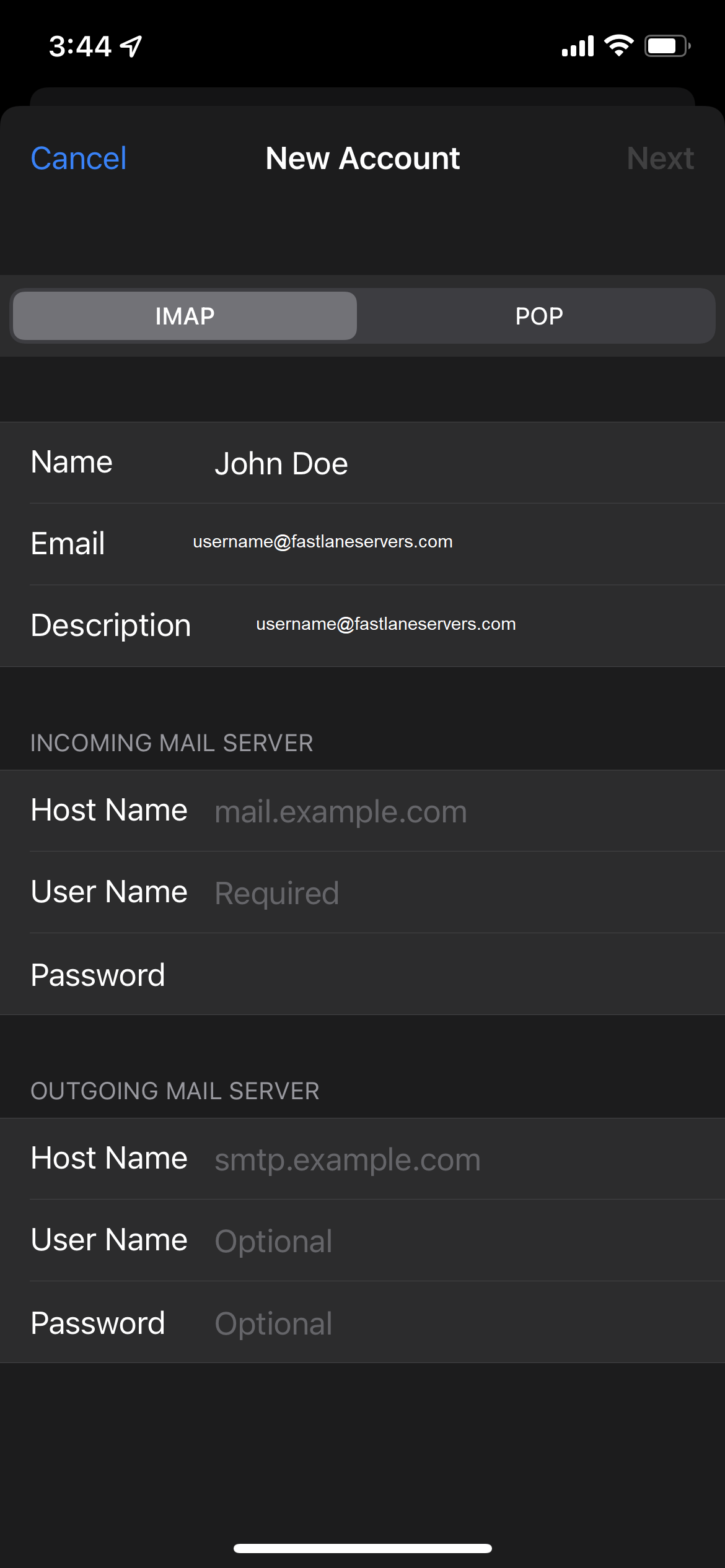
3. Enter the server settings for each incoming & outgoing server.
Incoming Mail Server
Outgoing Mail Server:
Click Next
Incoming Mail Server
Host Name: mail.fastlaneservers.com
User Name: username@fastlaneservers.com
Password: Type your password
Outgoing Mail Server:
Host Name: mail.fastlaneservers.com
User Name: username@fastlaneservers.com
Password: Type your password
Important:
cPanel Web Hosting Clients with custom domain names will need to use:
Incoming and Outgoing Server: mail.yourdomain.com
*Please replace yourdomain.com with whatever you domain you have registered with us.
cPanel Web Hosting Clients with custom domain names will need to use:
Incoming and Outgoing Server: mail.yourdomain.com
*Please replace yourdomain.com with whatever you domain you have registered with us.
Click Next
Example:
4. Tap Save
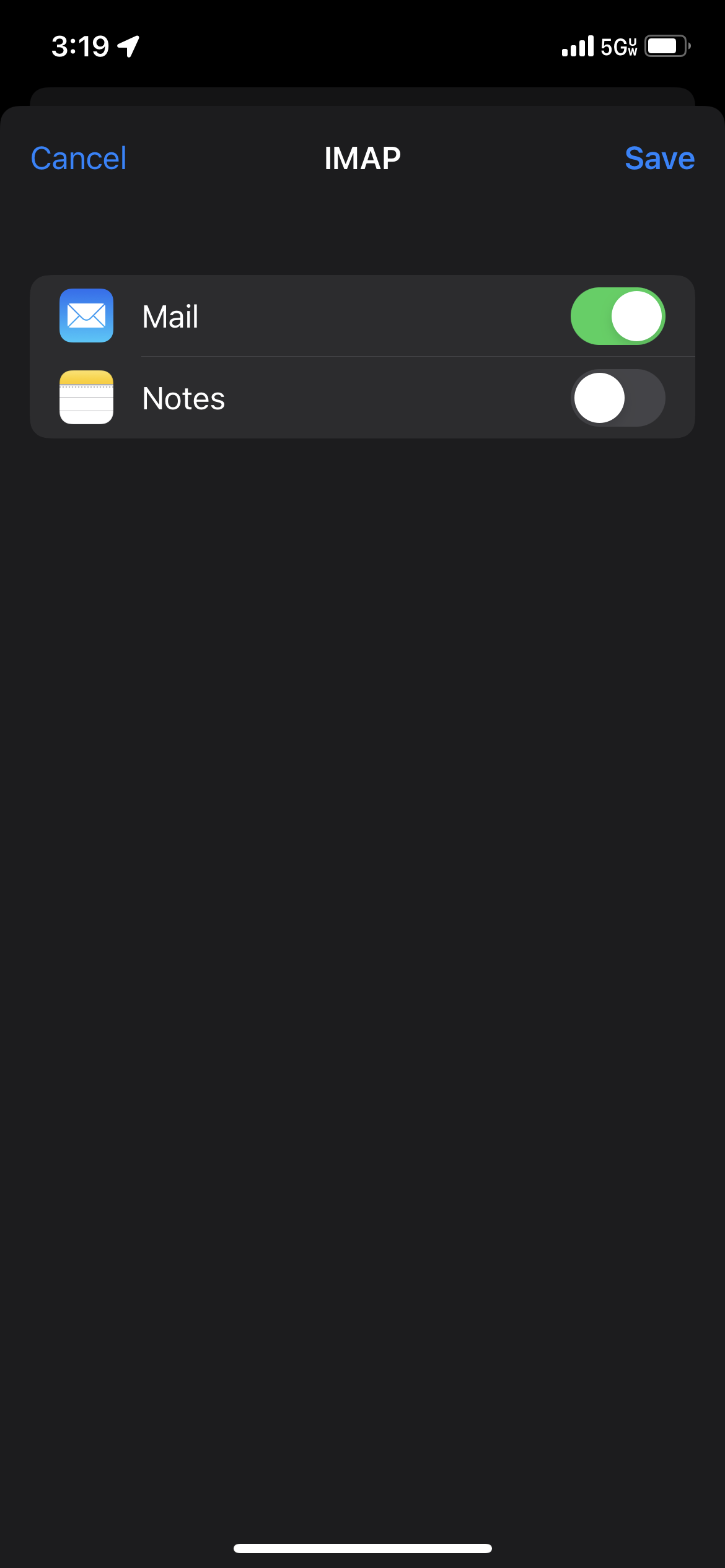
You're Finished!